
I gave Claude Cowork one prompt and got back a 7-slide executive presentation, with real budget figures, risk assessments, and customer status pulled from eight documents scattered across my computer. No uploading, no copy-pasting, no manual search.
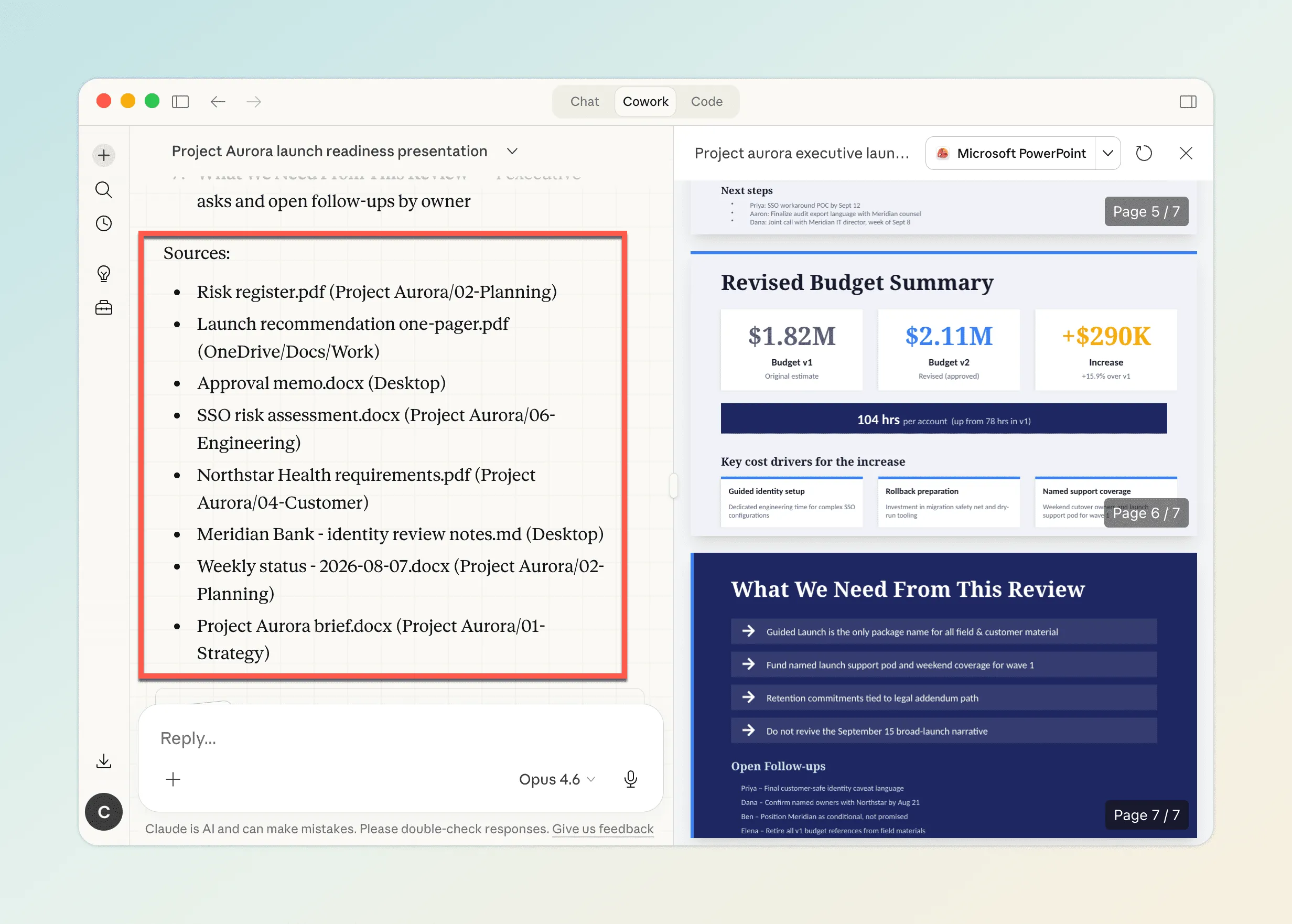
The data came from a risk register in a project folder, an approval memo on the Desktop, a launch recommendation shared via OneDrive, and five more files from across the machine. One prompt, about seven minutes of hands-off waiting, all sourced.
Here’s how it works, and how to set it up yourself.
What Is Claude Cowork?
Most AI tools work like a conversation — you ask a question, you get an answer, you ask a follow-up. Claude Cowork works more like handing a task to a colleague. You describe the end result you want, and Cowork plans the steps, does the work, and delivers a finished file — a presentation, a report, a spreadsheet. It’s built into the Claude desktop app, which you’ll need to install if you haven’t already.
| Traditional AI chat | Claude Cowork | |
|---|---|---|
| How it works | You ask, AI answers | You describe an outcome, Cowork plans and executes |
| Interaction | Back-and-forth conversation | Hands-off — you step away and come back |
| File access | Upload files manually into the chat | Reads and writes files on your computer |
| Output | Text replies | Finished files (PowerPoint, Word, Excel) |
| Best for | Questions, brainstorming, editing | Multi-step tasks with a concrete end result |
You give Cowork access to a folder on your computer, and it can read and write files inside that folder autonomously. But in practice, two things limit what it can actually do with your files.
The Problem: One Folder Isn’t Enough
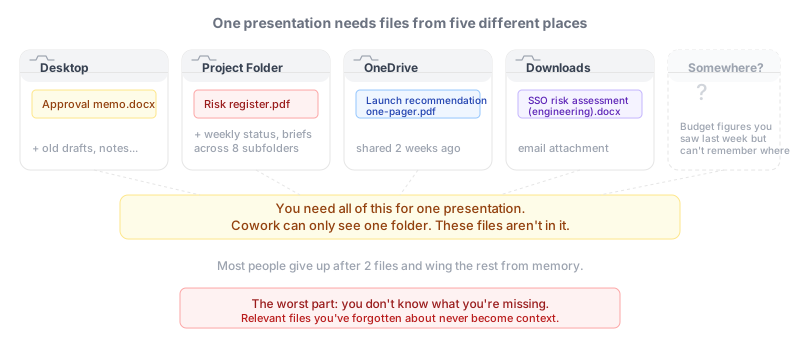
Problem 1: Your files are everywhere. Cowork can only access the one folder you assign to it. But real work pulls from files scattered across your computer — a risk register in a project folder, an approval memo on the Desktop, a launch recommendation someone shared via OneDrive. If a file isn’t in Cowork’s assigned folder, it doesn’t exist to Cowork.
You could copy everything into one folder before starting, but that means you have to remember what’s relevant, find it across your computer, and figure out which version is current. Most people give up after two files and wing the rest from memory.
Problem 2: Cowork can’t search inside most file formats. Even within its assigned folder, Cowork has no way to search by content across PDFs, Word docs, or PowerPoint files. It can search through plain text files, but for documents like PDFs and Word files it has to open and read each one individually just to see what’s inside. If you have fifty documents in a folder and need the three that mention “budget variance,” Cowork has to read all fifty one by one. That’s slow and easy to get wrong.
The combination is brutal: your files are in the wrong places, and even if they weren’t, Cowork can’t efficiently find the ones it needs.
The Fix: Give Cowork a Search Engine
Gety is a local file search engine that indexes everything on your computer: PDFs, Word docs, scanned documents (via built-in OCR), PowerPoint files, Markdown, HTML. It runs entirely on your machine. No files are uploaded anywhere.
When you connect Gety to the Claude desktop app, it solves both problems at once:
- Cross-location search. Gety indexes your entire computer, not just one folder. Cowork can find files on your Desktop, in OneDrive, in project directories, everywhere. No need to copy files into a single folder first.
- Cross-format search. Gety has already indexed the full text of every PDF, Word doc, and PowerPoint file. Instead of opening fifty documents one by one, Cowork queries Gety and gets the three relevant ones back in milliseconds — with the matching content already extracted.
You describe what you need, and Cowork calls Gety to find the relevant documents across your entire computer. No manual search, no folder juggling, no format limitations.
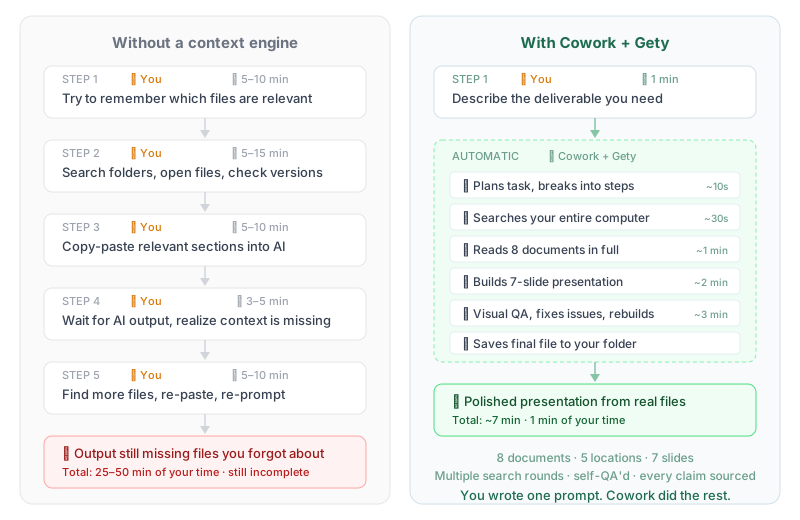 The manual workflow vs letting Cowork + Gety handle context automatically
Setup takes about a minute
- Quit the Claude desktop app completely
- Open Gety → Settings → AI Integrations and click Claude under AI Apps
- Relaunch Claude
That’s it. Gety handles the connection automatically.
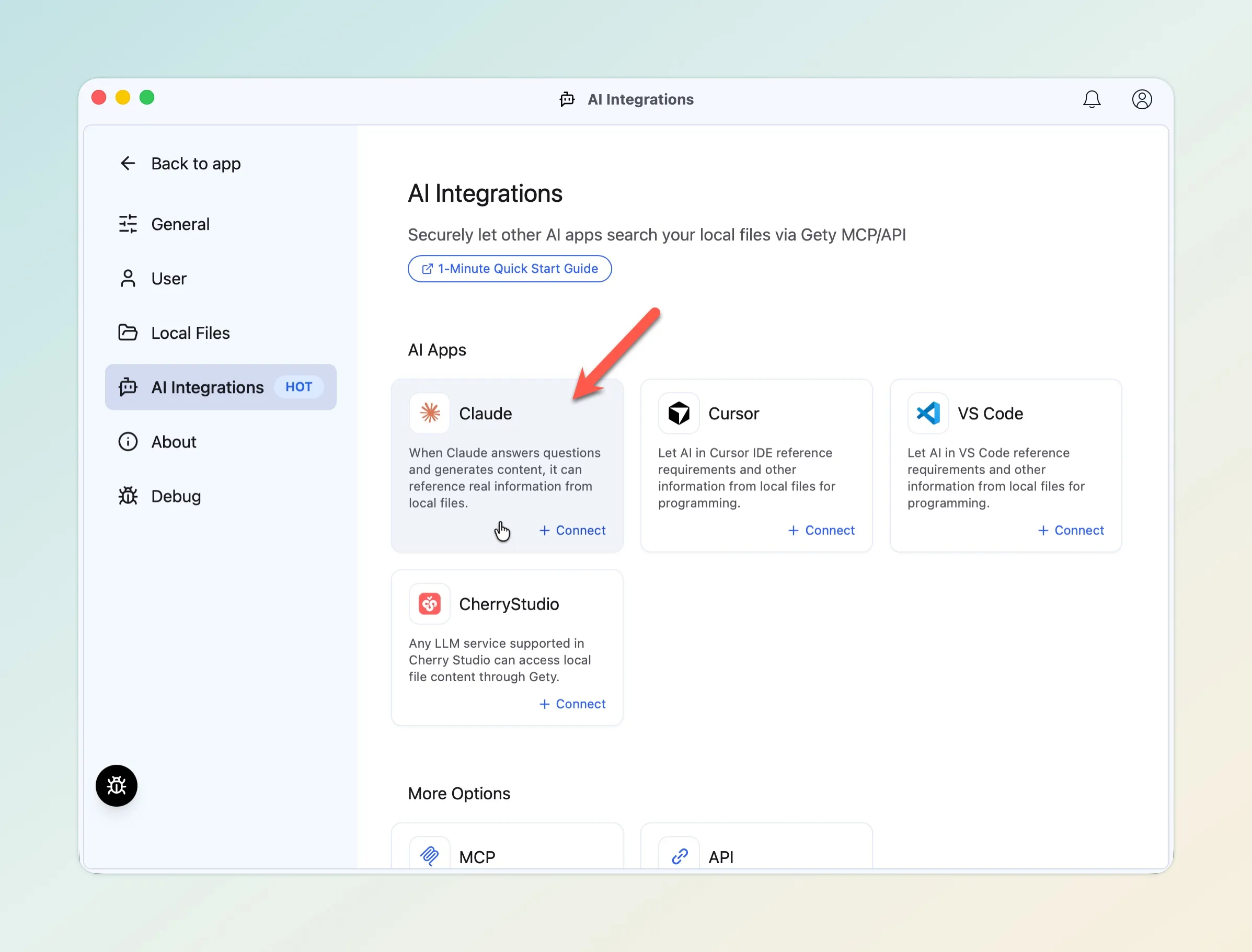 Gety → Settings → AI Integrations: click Connect under Claude
Once connected, you’ll see gety appear as a connector in Cowork’s Context panel on the right side. That’s how you know it’s working.
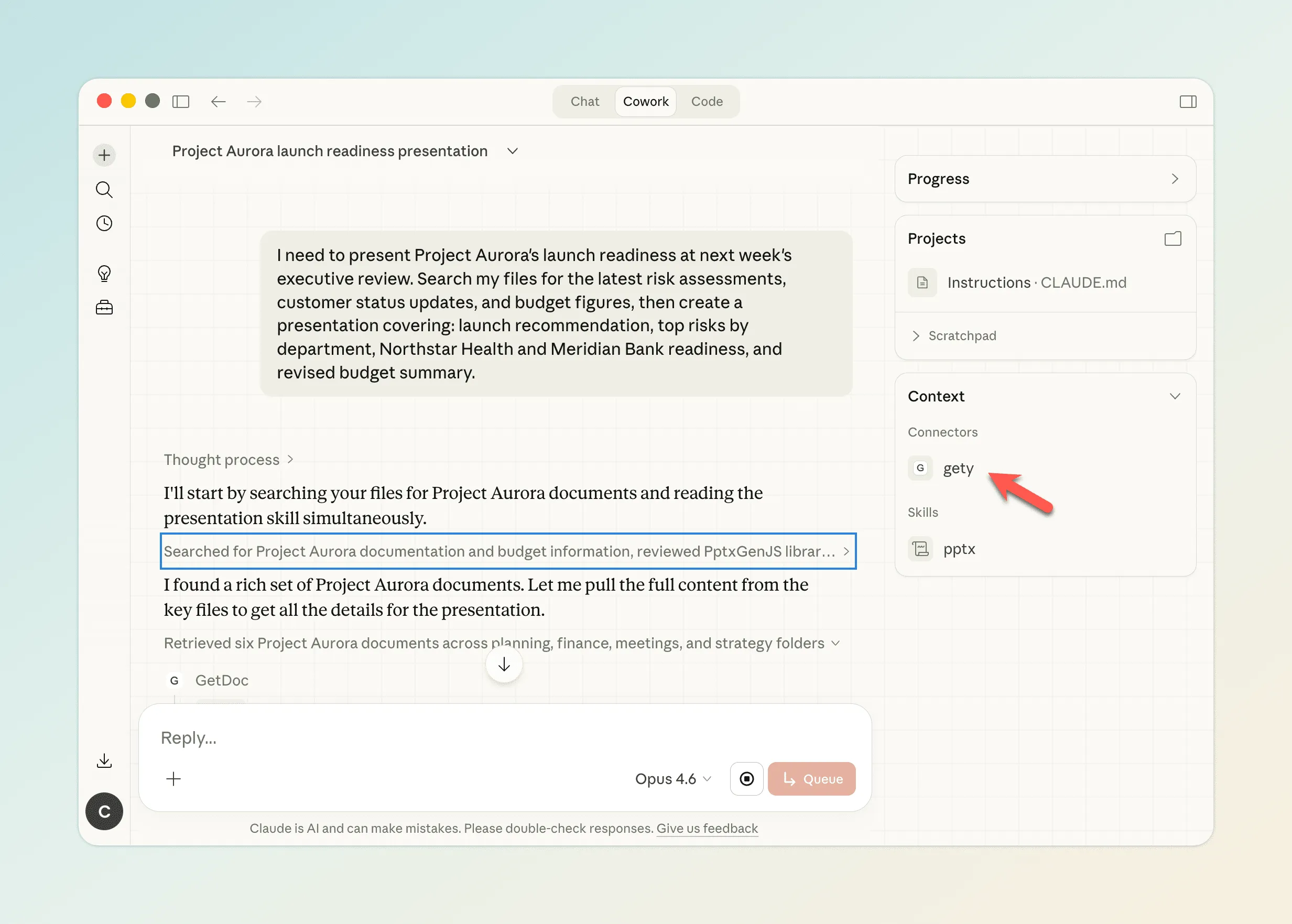 Gety appears as a connector in Cowork’s Context panel — the connection is live
Demo: One Prompt, Seven Slides
Here’s what this looks like in practice. Switch to the Cowork tab in Claude and try a prompt like this:
I need to present Project Aurora’s launch readiness at next week’s executive review. Use Gety to search my files for the latest risk assessments, customer status updates, and budget figures, then create a presentation covering: launch recommendation, top risks by department, Northstar Health and Meridian Bank readiness, and revised budget summary.
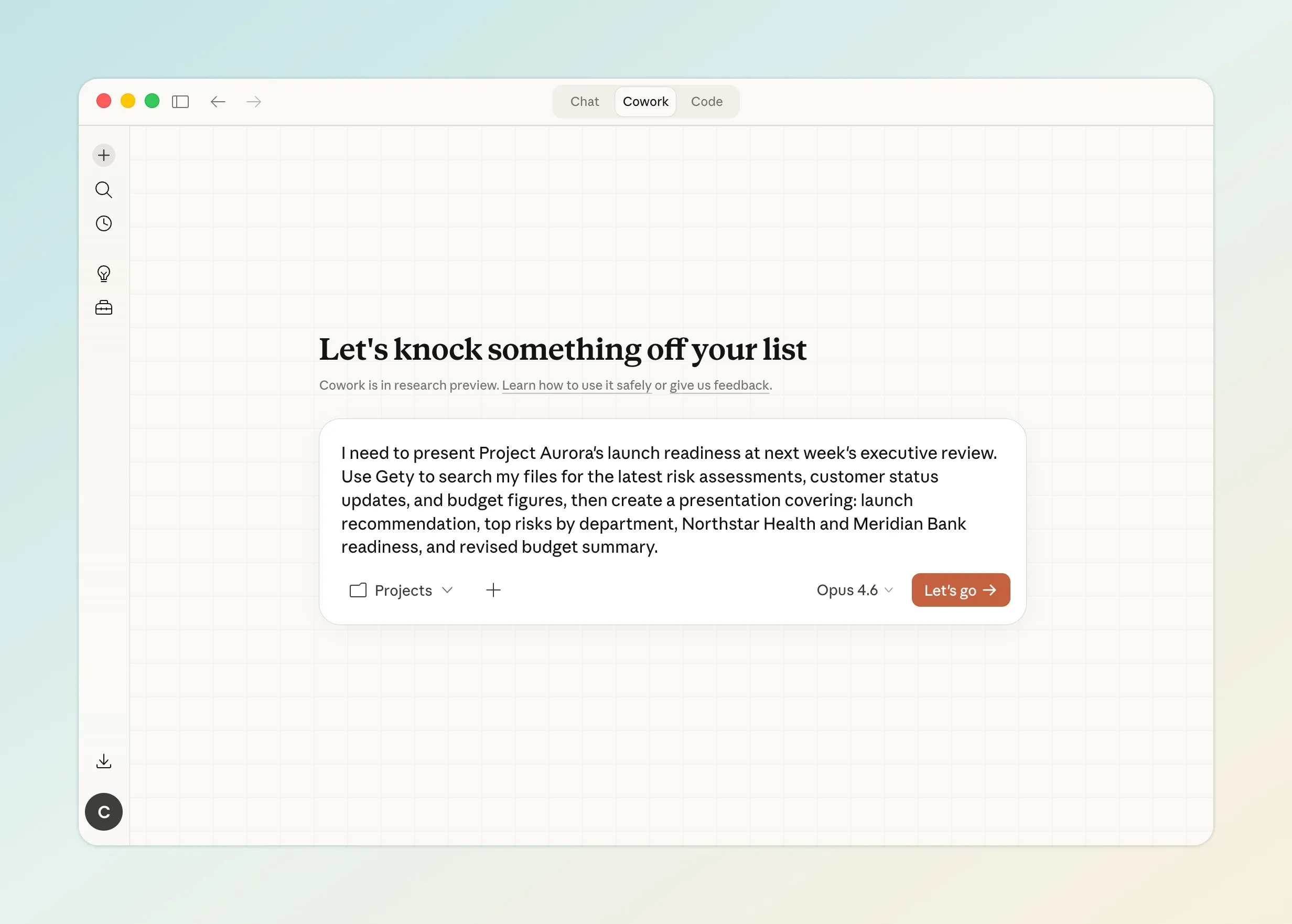 Describe the deliverable you need and click Let’s go
Cowork breaks the task into a four-step plan: research source documents, build the slides, visual QA, and save the final file.
In the research phase, it runs multiple rounds of Gety searches — first a broad sweep for Project Aurora documents, then targeted queries for specific topics like Meridian Bank’s readiness status. It found eight relevant documents and read each one in full.
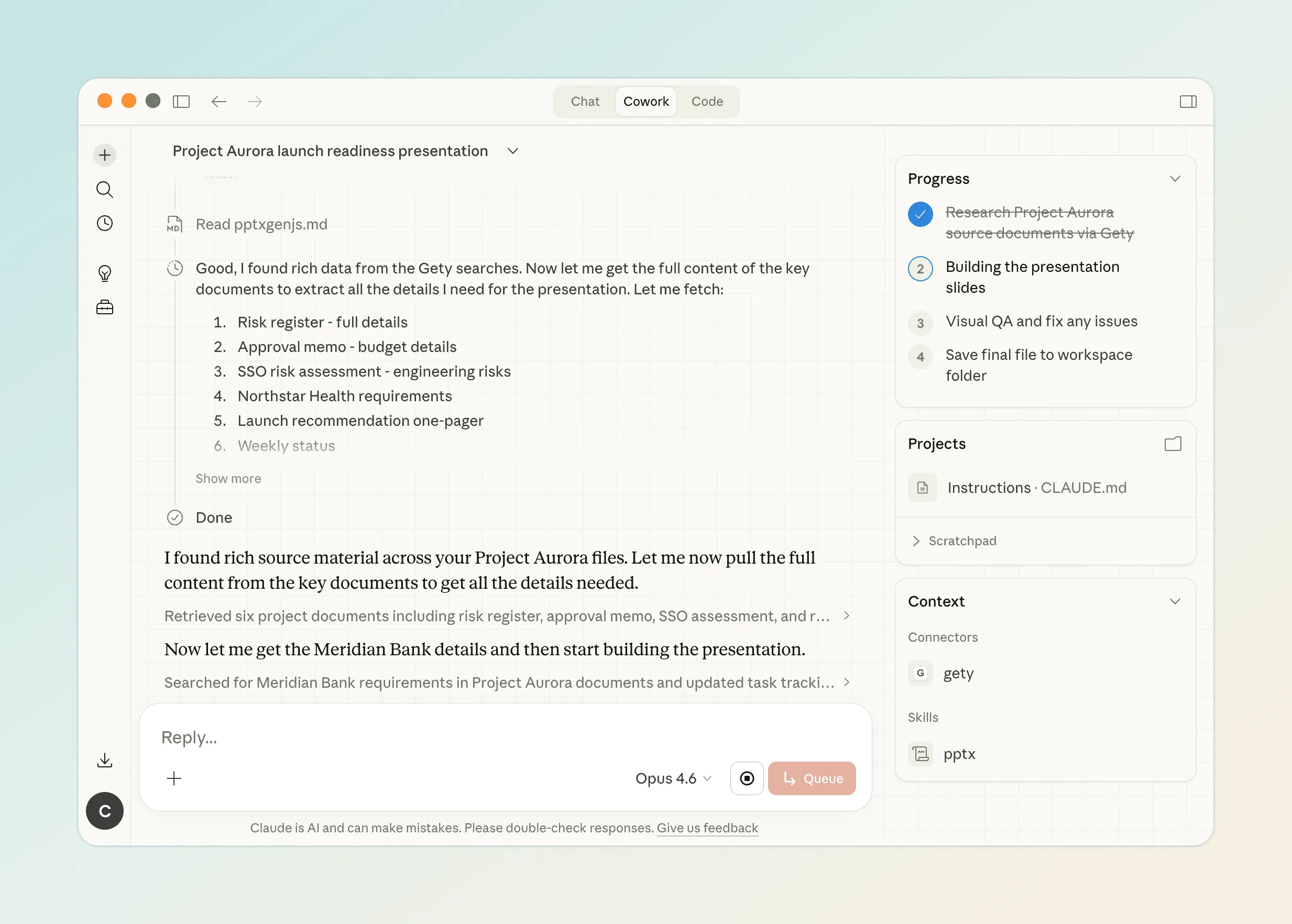 Cowork searching your files through Gety — it found the risk register, approval memo, SSO risk assessment, Northstar Health requirements, and more
Then it builds the presentation, inspects every slide for visual issues (text overlap, badge collisions, content cutoff), fixes what it finds, and rebuilds. The whole process — search, build, QA, fix, rebuild. The whole thing takes about seven minutes. You don’t do anything during that time.
The finished deck covers the full executive review agenda. Seven slides, each grounded in your actual documents:
- Title — Project Aurora, controlled launch recommendation for Sept 30, 2026
- Launch Recommendation — Approve controlled launch with Northstar as anchor, Meridian conditional on identity gating
- Top Risks by Department — 6 risks across Engineering, Operations, Sales/CS, Finance, and Legal with severity badges
- Northstar Health — Wave 1 GO with readiness checklist and pilot success criteria
- Meridian Bank — Wave 1 Conditional with 3 blocking issues and next steps
- Revised Budget Summary — $1.82M → $2.11M (+$290K), 104 hrs/account, with key cost drivers
- What We Need From This Review — 4 executive asks and open follow-ups by owner
Every number and claim comes from your actual files, not from AI making things up.
Look at the sources listed below — a risk register from the project folder, an approval memo from Desktop, a launch recommendation from OneDrive, and five more documents from across the computer. Cowork didn’t search one folder. Gety searched everywhere your files live and pulled them together into one coherent presentation.
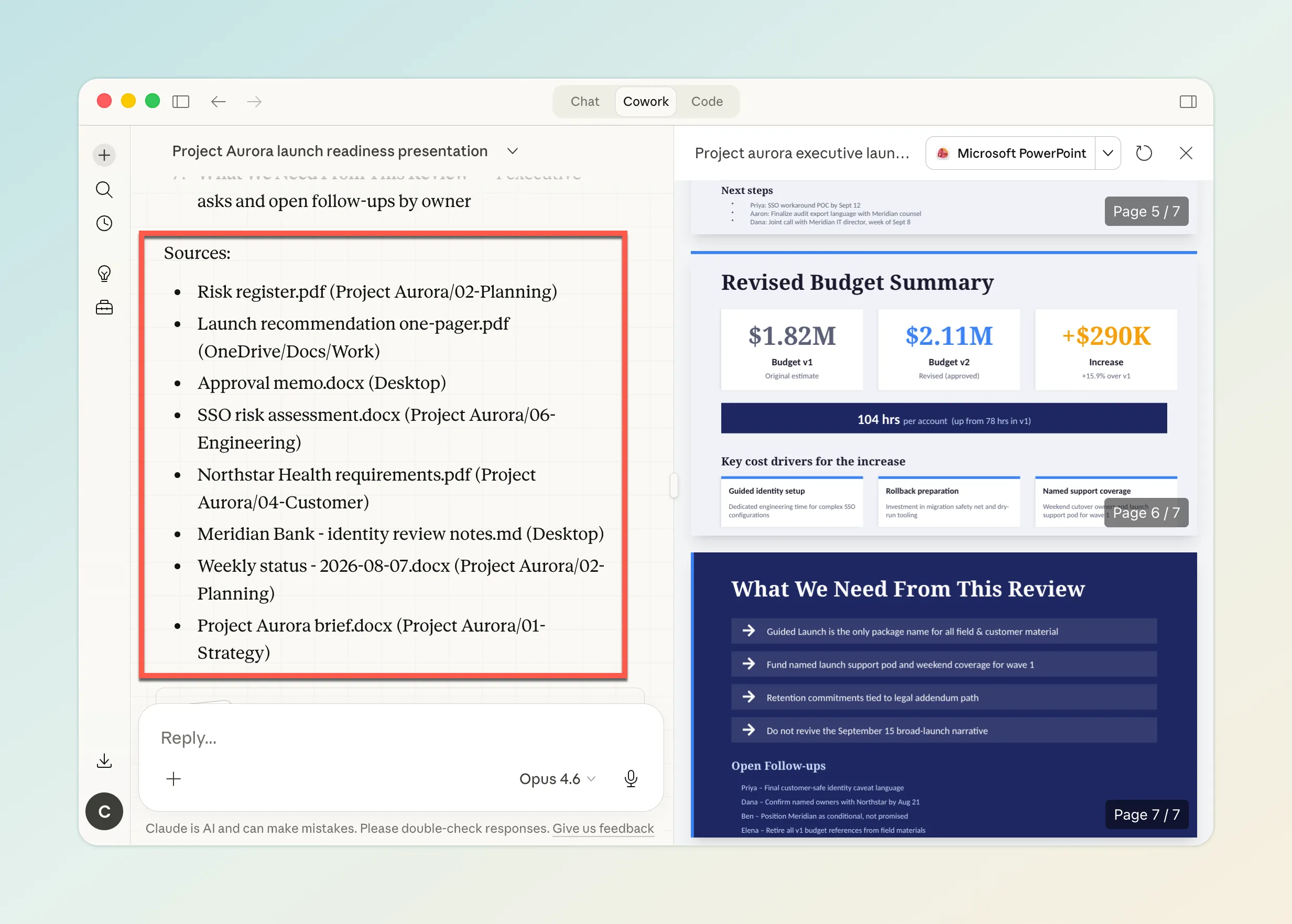 Eight source documents from across the computer — not a single folder
This is the difference between “make me a presentation about Project Aurora” (generic) and a presentation grounded in your actual risk assessments, budget data, and customer status — because the AI read the real files.
Tips for Better Results
Mention Gety in your prompt. If Cowork doesn’t seem to search your files, try including “use Gety” or “search my local files” in your prompt. This explicitly triggers the file search.
Control what Cowork can see. In Gety’s settings under AI Integrations → Data Sharing, you can choose Always Ask to review each file access request, or Always Allow for uninterrupted workflows.
Keep Gety running. Gety needs to stay running in the background for Cowork to search your files. If you close it, Cowork can only work with files in its assigned folder — and can’t search inside PDFs or Word docs by content.
Be specific about what you need. Instead of “make a presentation about the project,” describe the specific deliverable: what it should cover, who the audience is, what data points matter. The more specific your prompt, the better Gety can target its search.
What Else Can You Build?
The presentation demo is just one example. The same setup works for anything Cowork can produce:
| Scenario | Example prompt | What Cowork delivers |
|---|---|---|
| Executive summary | ”Summarize the status of all active projects based on the latest updates in my files” | Multi-project status document with timelines and risks |
| Competitive analysis | ”Search my files for anything related to [competitor] and create a comparison” | Side-by-side feature and positioning comparison |
| Meeting prep | ”Find all documents related to the Henderson account and create a one-page briefing” | Account briefing with history, open items, and contacts |
| Monthly report | ”Pull the latest metrics from my files and draft this month’s team report” | Formatted report with real data from your spreadsheets |
The pattern is always the same: describe the outcome, let Cowork + Gety find the context, get finished work.
Try It
Gety is free to start with. You don’t need an account to search your local files. Install Gety, point it at your folders, connect it to Claude, and try the prompt above with your own files. See what happens when AI can actually read your documents instead of guessing.
Download Gety · Works on Windows and macOS