
You’re sure a contract mentions “a late fee of 0.05% per day,” but you can’t find the file. The search built into your OS either spins for ages or misses the text inside documents, so you end up clicking through folders one by one. And text in screenshots or scanned PDFs won’t show up at all.
Half your work isn’t even on your drive anymore. Project notes live in Notion, issues and discussions sit in Linear, and last week’s articles are somewhere in your browser history. Finding one detail means searching three or four apps.
Gety searches files by what’s inside them, and results update as you type. Connect Notion, Linear, or Chrome, and their content shows up in the same search as your local files. It runs on Windows, macOS, and Linux, and light everyday use stays free.
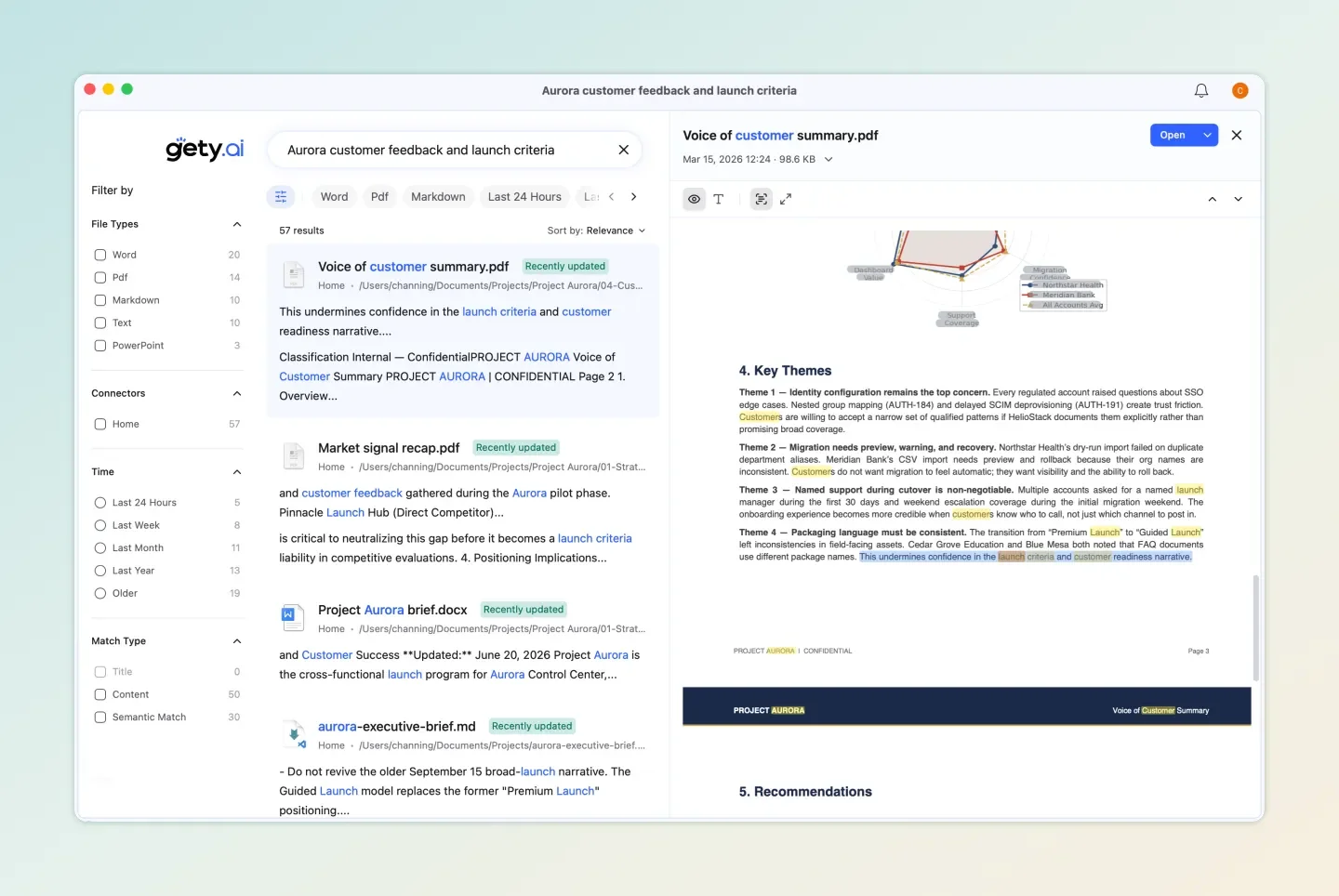 Gety’s main window: search box, filters on the left, results in the middle, and the original document preview on the right.
Gety comes from the team behind Listary. We’ve spent 16 years building file search used by millions of people who care about speed and simplicity, and we brought the same approach to Gety.
1. Search your whole drive, with results in milliseconds
Gety searches your entire drive. There are no folders to pick up front, and you don’t need to remember where a file lives. Every search comes back in milliseconds and updates as you type, so you never press Enter.
It reads PDF, Word, Excel, PowerPoint, TXT, Markdown, HTML, and WPS Office files, plus images (it reads the text in them with OCR).
A few things that come in handy every day:
- Find long numbers by their last digits: order numbers, invoice numbers, or tracking numbers. Type the last few digits and you’ll find the files that contain them.
- Narrow things down with
@: type@in the search box to pick a folder, file type, or time range. You can also paste a folder path after@to search only that folder. - Search an exact phrase: wrap it in double quotes, like
contract "late fee".
Other languages work out of the box. French, German, Japanese, Korean, and Chinese are matched by word, typing cafe finds café, and you can even search Chinese text by its pinyin.
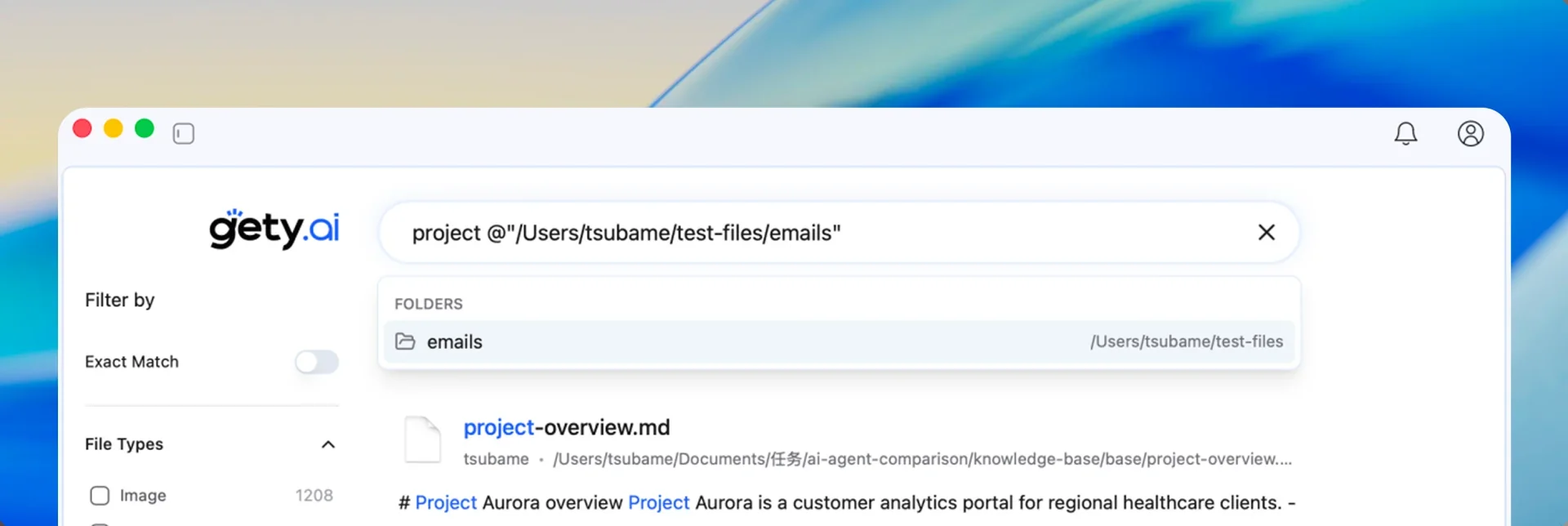 Paste a folder path after @ in the search box to search only that folder.
Searching a whole drive by content is hard. A tool has to read every file and build an index first. With hundreds of thousands of files, the first run takes hours, or even weeks if you have lots of scans, and it often bogs your machine down along the way. That’s why most full-text search tools ask you to pick a handful of folders instead.
Gety handles the whole drive because we rethought how indexing works:
- Indexing in layers: new files are searchable by name right away. Their text is extracted next, in the background, and text in images is recognized last. Each layer is searchable as soon as it’s done, so you don’t wait for the whole job.
- Automatic speed control: Gety watches how busy your CPU is and whether you’re plugged in. It slows down while you work and speeds up when the computer is idle. You can also tell it to skip image recognition while on battery.
- Low memory use: once the index is built, Gety uses little memory, so you can leave it running. When files change or new ones appear, the index updates itself.
2. Search the text in scans and screenshots
In a scanned PDF, a screenshot, or a photo from your phone, the text is locked inside an image. Regular search can’t read it.
Gety has built-in OCR that runs on your computer. It works offline and doesn’t charge per page. It handles web screenshots, chat screenshots, scanned contracts, and photos taken at an angle, including documents that mix languages. Once recognized, that text is as searchable as any document.
When you search a whole drive, there are usually more images than you’d guess. Screenshots, phone photos, and scans often add up to tens of thousands, which takes a fast OCR engine. Gety’s OCR is built for everyday laptops. It uses about a fifth of the memory of other local OCR engines, so tens of thousands of images can be processed quietly in the background.
Even with that small footprint, its multilingual accuracy ranks first among OCR engines that run locally (compared with PaddleOCR, Tesseract, Apple Vision, and Windows OCR; see the Gety OCR benchmark). Handwriting and very blurry images are recognized less accurately than with cloud OCR. For high-stakes documents, it’s worth running them through an online OCR service as well.
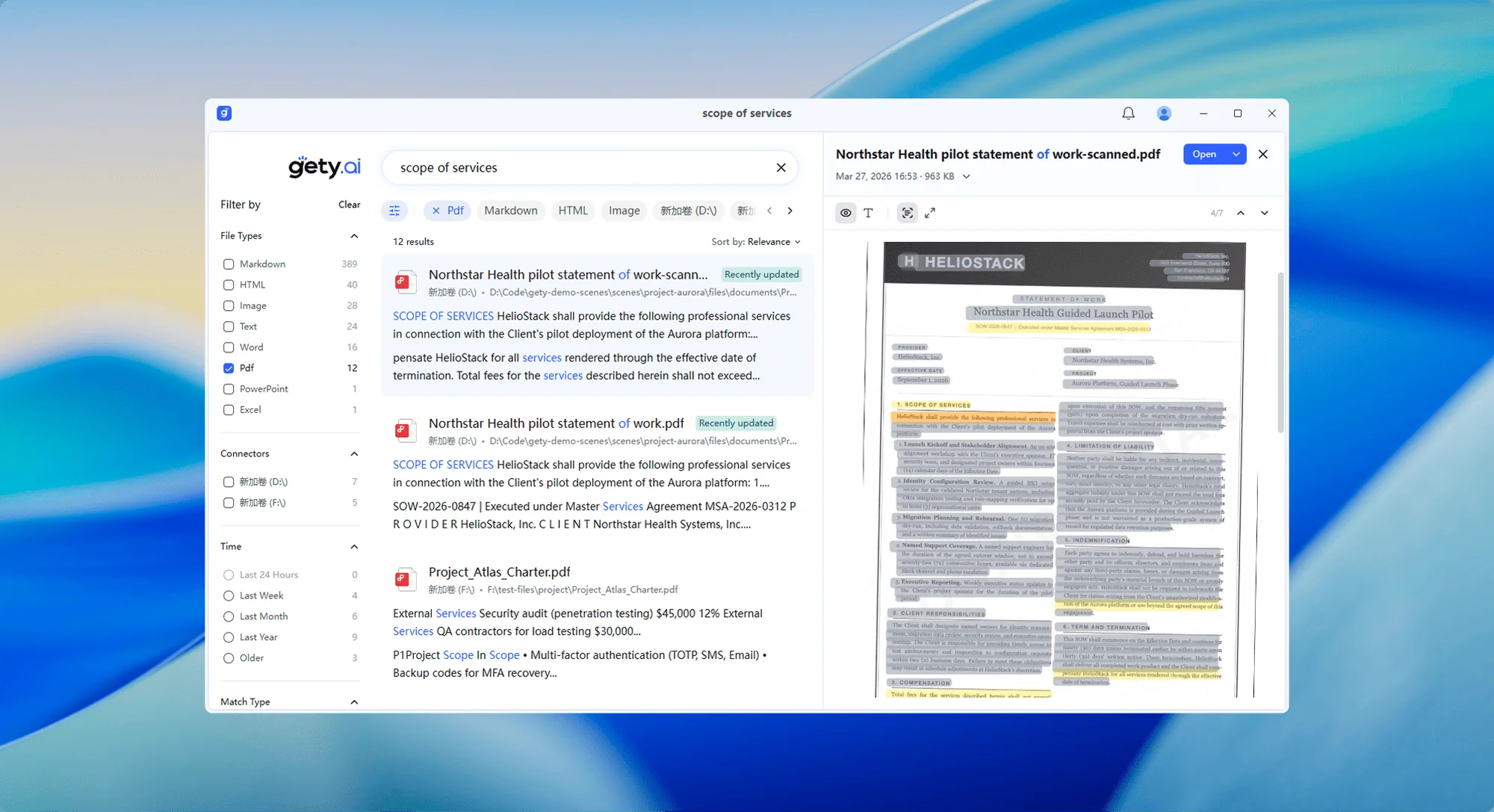 Search a word and find it inside the image of a scanned PDF, highlighted.
3. Preview the original: find the passage without opening the file
Half the time you aren’t after a file at all. You need one detail inside it: a clause in a contract, a number in a report, a line in a chat screenshot.
With most search tools, you find the file and then have to open it. If it’s a 500-page PDF, you search again inside it to get to that line.
Click a result in Gety and the original opens in the preview pane on the right, already scrolled to the matching page with your words highlighted. You can copy what you need right from the preview without opening the file. To find another word in the same document, press Ctrl + F (Cmd + F on a Mac).
Previews keep each file’s original layout. Even 500-page documents and huge Markdown notes open without lag.
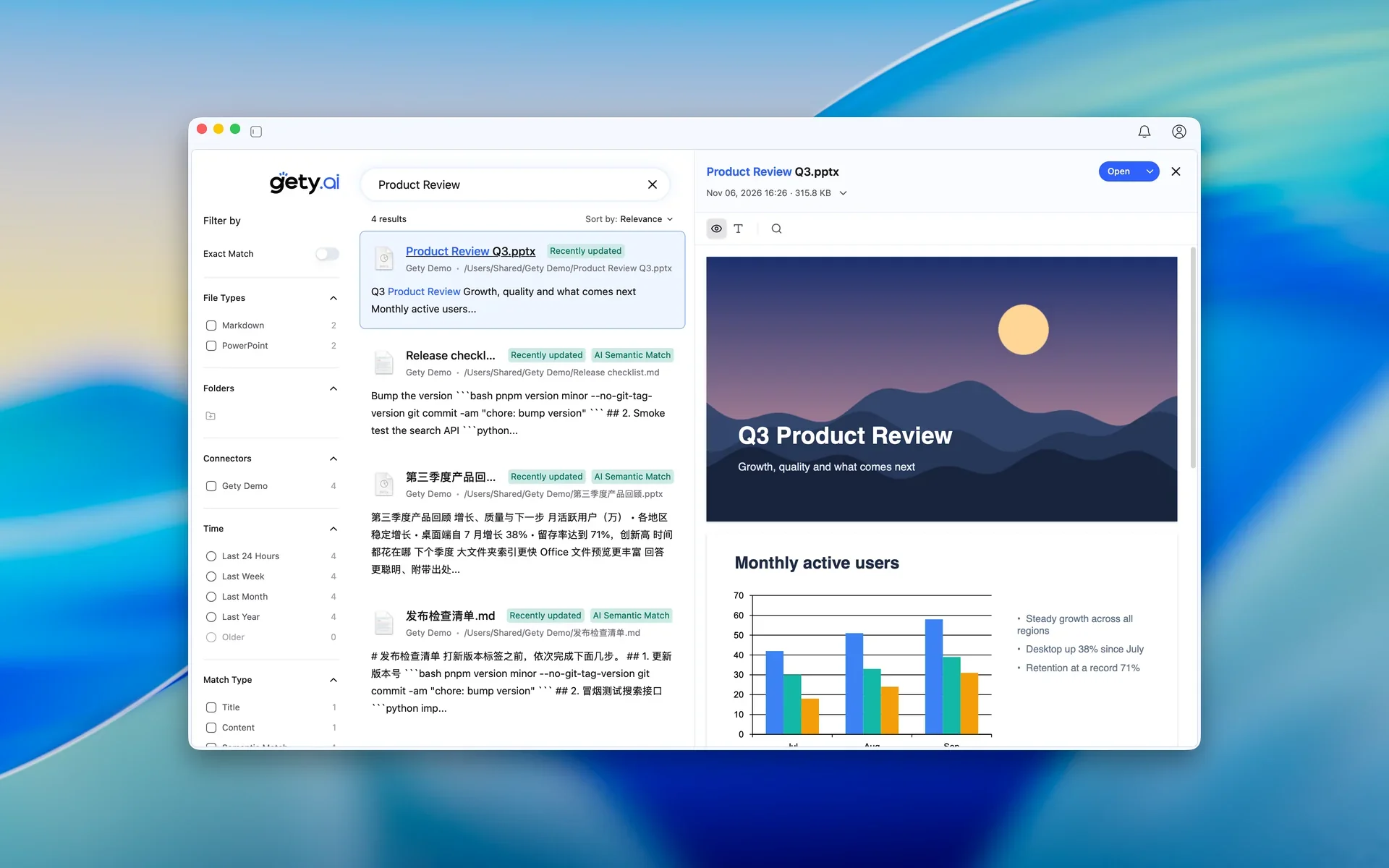 A PowerPoint slide previewed as it looks in the original.
4. Connectors: search Notion, Linear, and your browser along with your files
By the end of a project, everything is scattered across tools. The proposal is on your drive, decisions are buried in Linear threads, the retrospective lives in Notion, and the articles you read are sitting in your Chrome bookmarks.
Install the matching connector and that content syncs into Gety’s index on your computer. Search a keyword, and your local files and your Notion and Linear content show up in one list. Click a result to jump back to the original page.
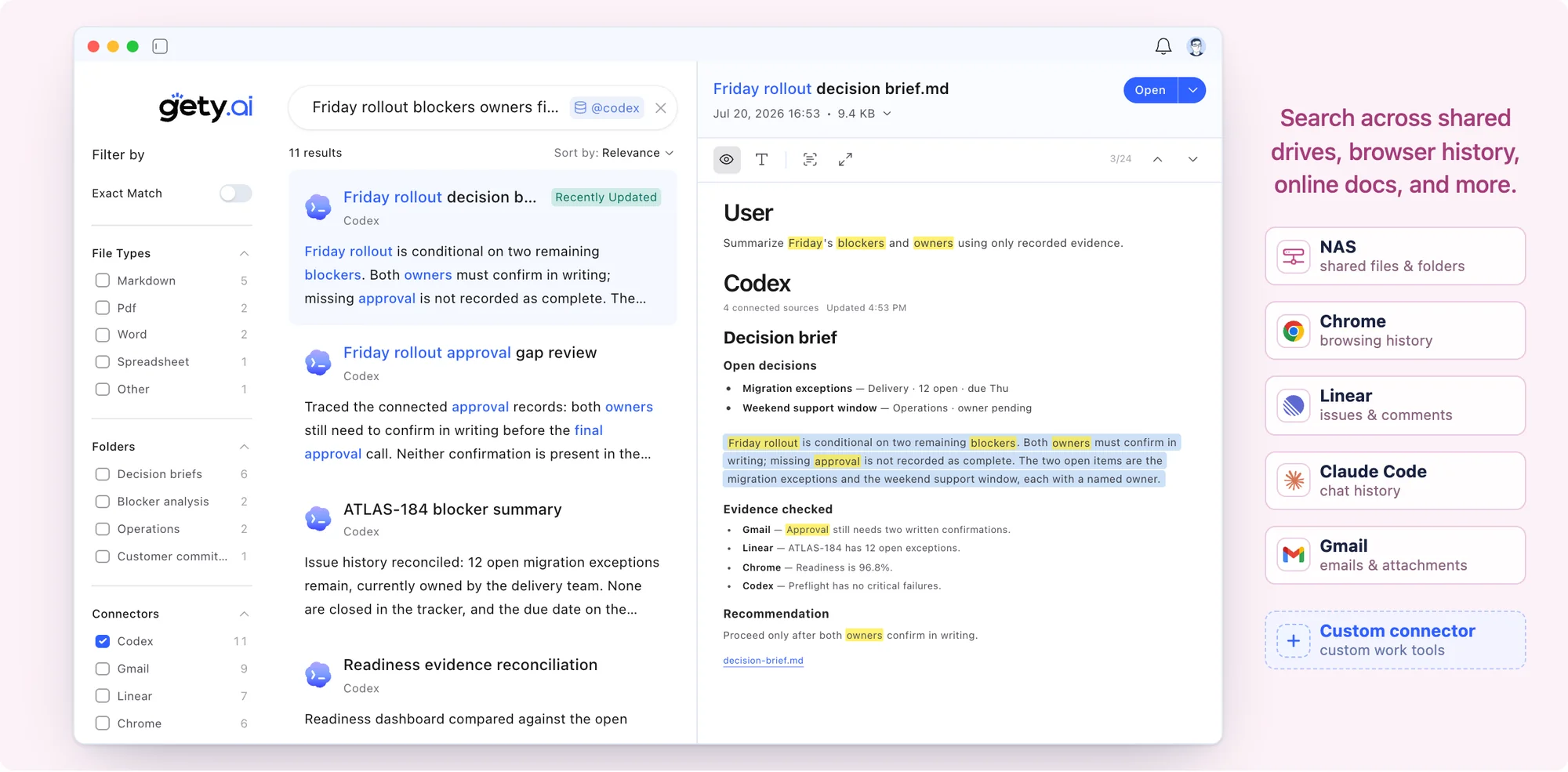 Illustration: search results with a Connectors filter on the left, and examples of sources you can connect on the right.
Six featured connectors today
Install any of them with one click under Settings → Connectors → Featured connectors:
- Notion: search every page you’ve shared with the connector.
- Google Chrome: search bookmarks and browsing history. Chrome doesn’t save page content, so this searches titles, URLs, and bookmark folders.
- Linear: search issues, and their comments too if you turn that on.
- Claude Code and Codex: search your past conversations with these AI coding assistants. Codex results include the session ID, so you can go back to that conversation and pick up where you left off.
- Feishu: search the docs, wiki pages, and chats you have access to (requires Feishu’s
lark-cli).
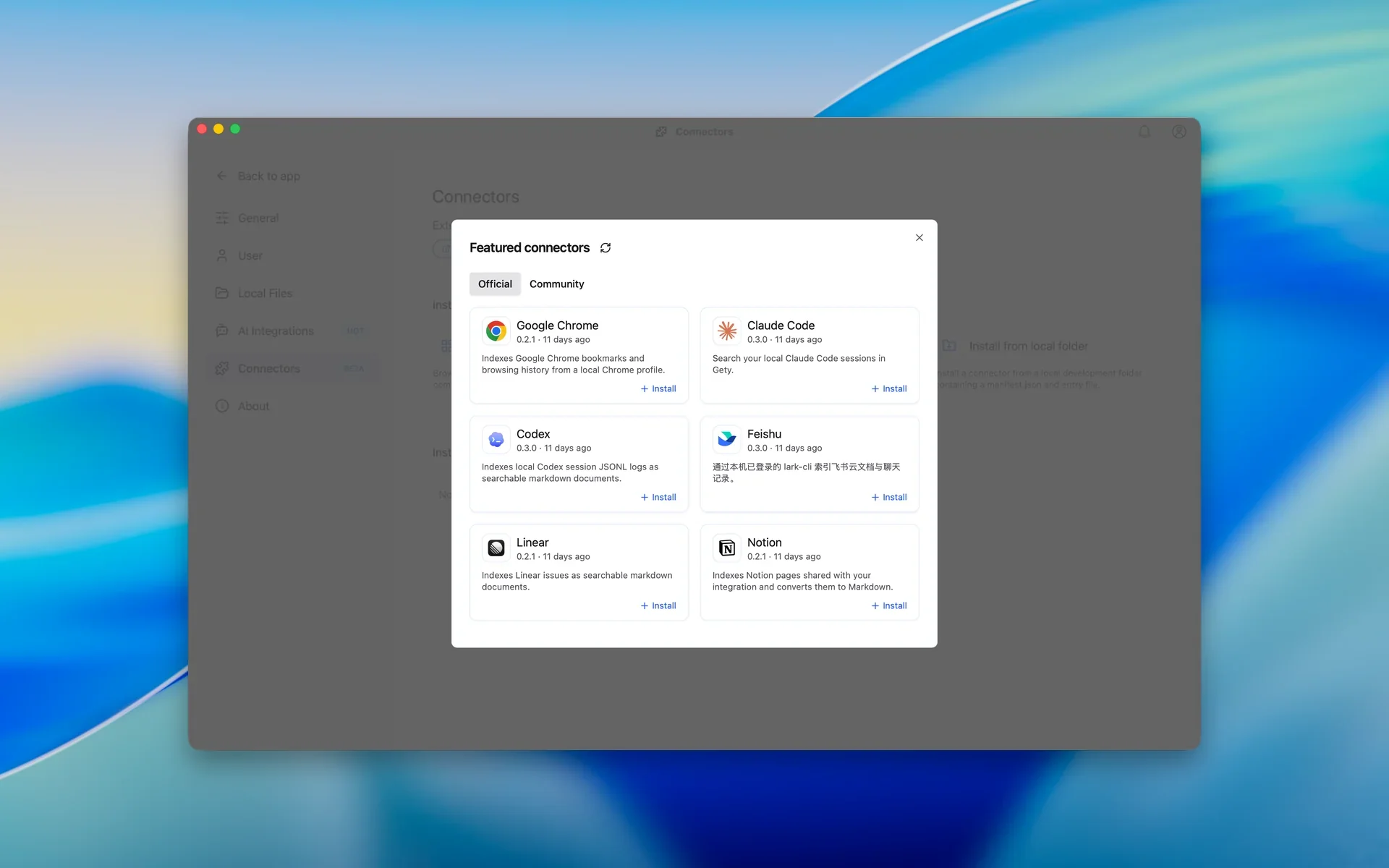 The Featured connectors list, with one-click install.
Bring in any data you want
Beyond these six, anything you can reach through a web API or through files on your computer can become a connector: your company’s internal systems, the note apps you use, bookmarks saved on a website. All of it can go into Gety and be searched alongside your local files.
Building your own isn’t hard. We provide a connector-building skill. Add it to your AI coding tool, say “build me a Gety connector for X,” and the AI writes and tests it to Gety’s spec (see Build a connector). Publish it on GitHub or npm, and anyone can install it by pasting a link.
We’d love for you to share the connectors you build. The featured list has a Community tab just for them, and every version is reviewed before it’s listed. The featured list will keep growing.
5. Let AI use what’s on your computer
Lots of people use AI at work now, for weekly reports, presentations, and pulling research together. But AI doesn’t know what’s on your computer.
We built Gety to be AI-native from the start. We think a lot of work will be handed straight to AI. So anything you can do in the app, such as searching by content or filtering by file type and date, AI can do too, through the command line, MCP, or the API.
Say you’re writing a quarterly review. You could ask your AI, “Pull this quarter’s budget, meeting notes, and customer feedback into a first draft of the review.” It searches your computer through Gety first, finds the budget sheets, notes, and feedback scattered across your desktop and project folders, before it writes a word. It can also tell you which file each point came from. With connectors installed, it can search your Notion and Linear content as well.
Having AI dig through your files directly is slow, burns tokens, and means giving it access to your whole drive. With Gety, the AI sends one search request and gets back the most relevant passages in milliseconds.
In Gety’s AI Integrations, one click connects the AI apps you already use:
- Everyday work: Claude Desktop, ChatGPT Desktop, Cherry Studio, and more
- Coding: Cursor, VS Code, Claude Code, Codex, Gemini CLI, GitHub Copilot CLI, Windsurf, and more
- Local models: LM Studio
Other AI tools that support MCP can connect too, and developers can call Gety directly through the API or the command line.
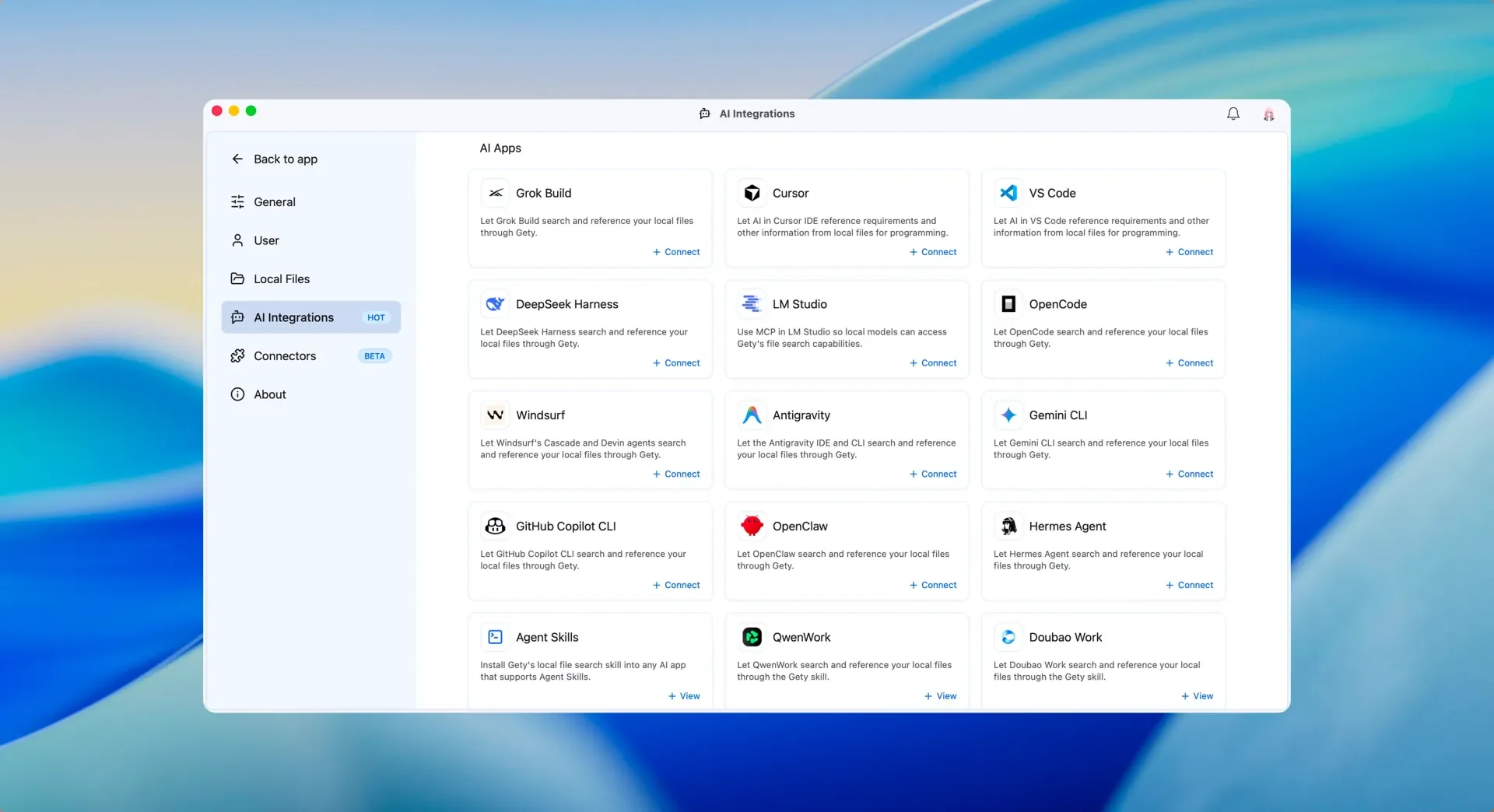 The AI Integrations page, where each AI app connects with one click.
On privacy: by default, AI gets the most relevant snippets from search results, and a full document only when it needs one. Under Settings → AI Integrations → Data Sharing Control, you can choose “Ask every time” and review each request before anything is shared. Indexing and search happen on your computer, and your files aren’t uploaded to Gety’s servers. If you connect a cloud AI, the snippets you approve are sent to that AI service. If you’d rather nothing leave your computer, connect a model that runs locally.
Wrapping up
When you’re searching on your own, Gety puts your local files, scans, Notion, Linear, and browser history in one search box. When you’re working with an AI assistant, it gives the assistant access to what’s on your drive, so it can draw on your actual work.
Gety is open by design. Any data you want to search can come in through a connector, and the AI apps you already use can call it through MCP, the API, or the command line.
For light everyday use, Gety stays free. The free plan has monthly limits on searches and AI integration requests. If you use it a lot, Pro removes the limits.
If you often lose track of files, or you want your AI to use what’s on your computer, download Gety and give it a try.